

Every Claude for M365 add-in shares one store
Users run more than one Claude for M365 add-in over time: the per-app store listings, an enterprise sideload, or a custom manifest that points the add-in at your own cloud. All of them are served fromhttps://pivot.claude.ai, and
browser storage is keyed to that address. They therefore read and write the same
store on a given device.
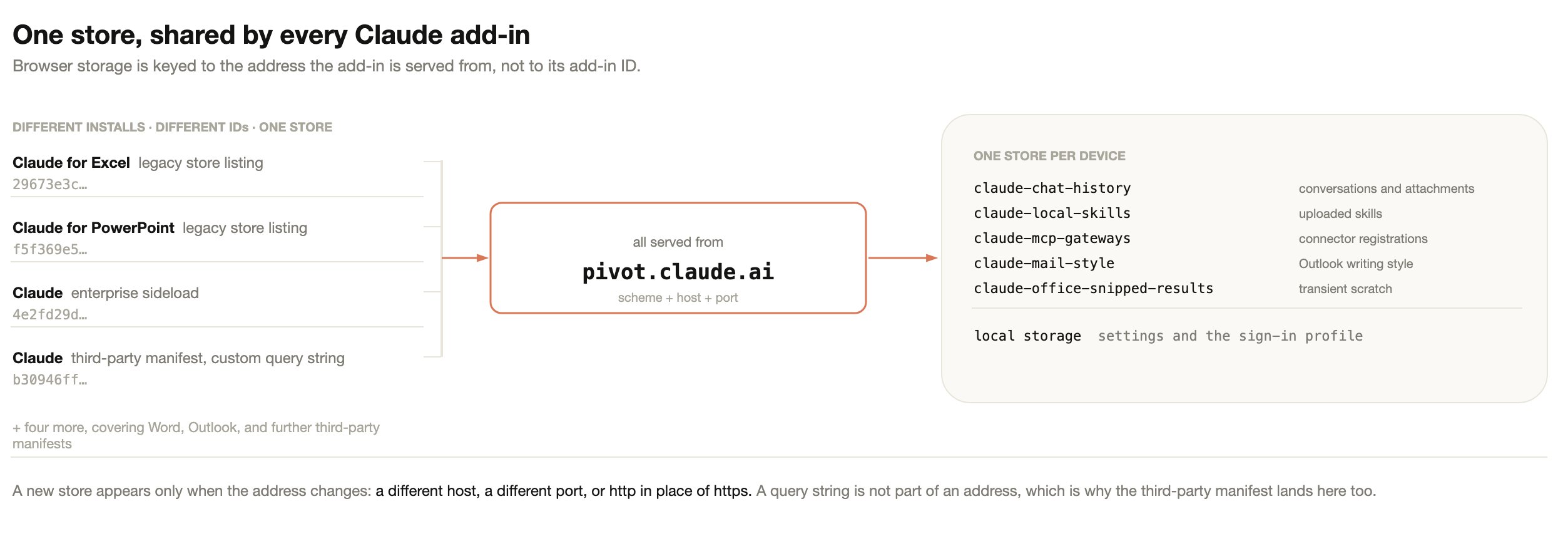
<SourceLocation> URL, and opens it in an embedded browser. From that point the
browser behaves as any browser does: it hands storage to the page’s address,
meaning its scheme, host, and port. The add-in’s ID, version, and display name
never enter the lookup, so a manifest is closer to a bookmark than to a
container. Deleting a bookmark does not delete the site’s cookies.
Two consequences follow:
- A query string is not part of an address. A third-party manifest is built for one organization and carries that organization’s configuration in a query string, so no two are alike. All of them still land in the same store as every other install.
- Changing the address does create a new, empty store. Serving the add-in from a
different host, a different port, or over
httpinstead ofhttpsgives it somewhere else to read and write. The previous store still exists, but nothing reads it.
What Claude for M365 stores
The table below lists the add-in’s IndexedDB databases and its local storage, all inside the signed-in user’s operating system profile, with what each one holds and what it is scoped to.
Conversations, memory notes, and the Outlook writing style guide are scoped to
the individual user. Uploaded skills, connector registrations, crash-detection
records, and conversation parts moved out of Claude’s working context are
scoped to the storage location instead, so anyone who reaches the same store
shares them. The Windows and macOS sections below describe what splits a store
on each platform.
This only applies where people share a single operating system account. That
arrangement already shares the browser profile, saved sessions, and local files
between them, so the guidance is the same as for any browser-based tool: give
each person their own operating system account.
Claude for M365 also writes one value into the Office document itself: an opaque
identifier that lets the add-in recognize the same file after a rename or a Save
As. It holds no user information and no conversation content, and it travels
with the file if the document is shared.
Sign-in and credentials
Every store above holds only content, with two exceptions. Local storage holds the signed-in user’s identity: the credential the add-in presents to the model endpoint you configured.claude-mcp-gateways holds an access token, and a
refresh token when the connector issues one, for each connector that your
deployment configures and the user has authorized.
Local storage also holds the Microsoft Entra ID tokens that Microsoft’s sign-in
library keeps for the add-in, such as the token that Claude for Outlook uses to
call Microsoft Graph.
What the credential is depends on how users sign in:
- A Claude account sign-in stores an access token, and a refresh token that the add-in uses to get a new access token.
- A Vertex AI sign-in stores a Google refresh token with the
cloud-platformscope, and the OAuth client ID and client secret that you configured. - An Amazon Bedrock sign-in stores the user’s Entra ID token and sign-in name, and short-lived AWS credentials. A Foundry sign-in through Microsoft Entra ID stores a short-lived Entra ID access token for the resource that your manifest’s Entra scope names. The add-in renews both automatically.
- A gateway token or API key that you configure yourself is held until you change it. A gateway token from a bootstrap endpoint is fetched again each time the add-in loads, shortly before any expiry that the endpoint declares, and after the gateway rejects a request as unauthorized.
Where the data sits on Windows
On Windows the store is split by signed-in Office account. Local storage is one database for the whole browser profile rather than one per address, which is the main difference from macOS.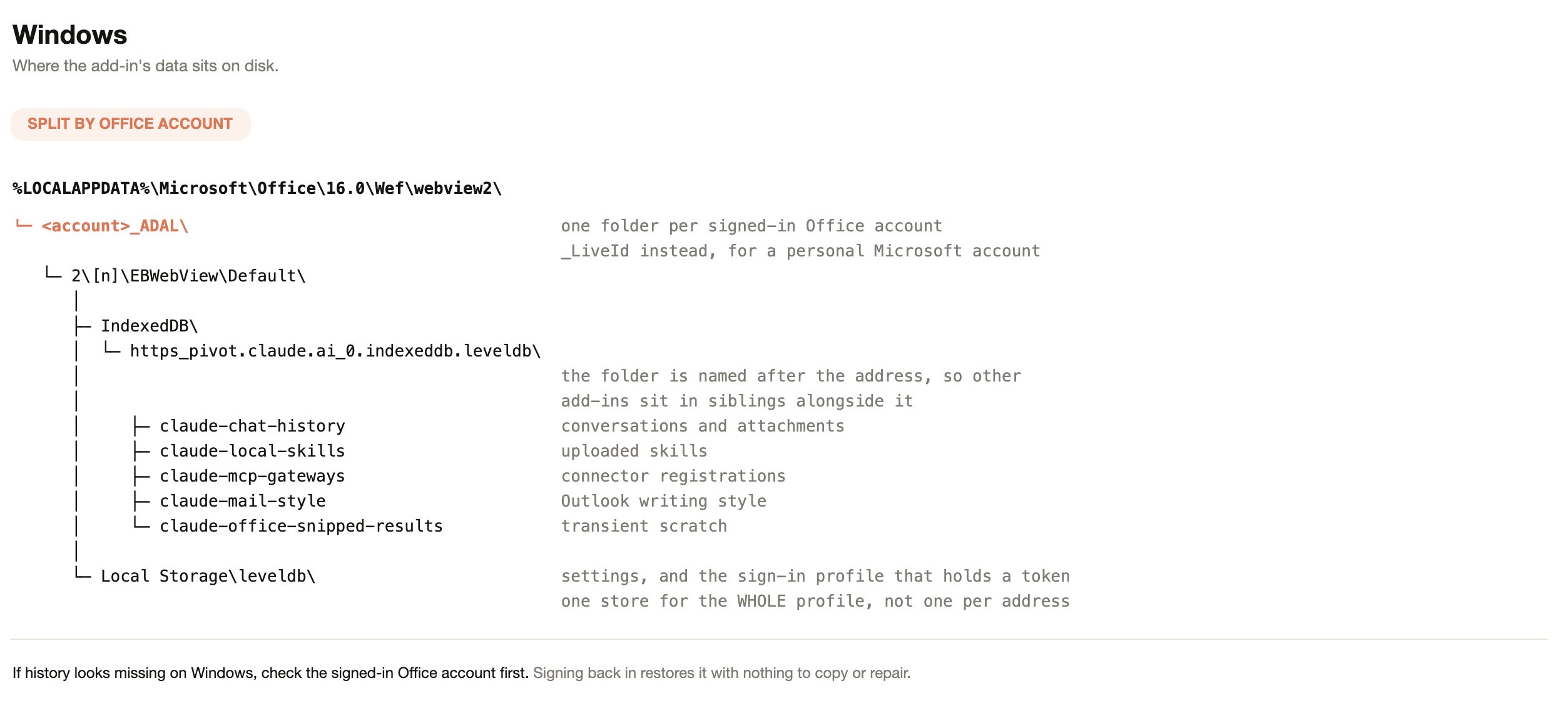
Where the data sits on macOS
On macOS the store is split by Office app instead. Each app runs in its own sandbox container, so Excel, Word, PowerPoint, and Outlook always keep separate histories, and local storage sits inside the folder for a single address.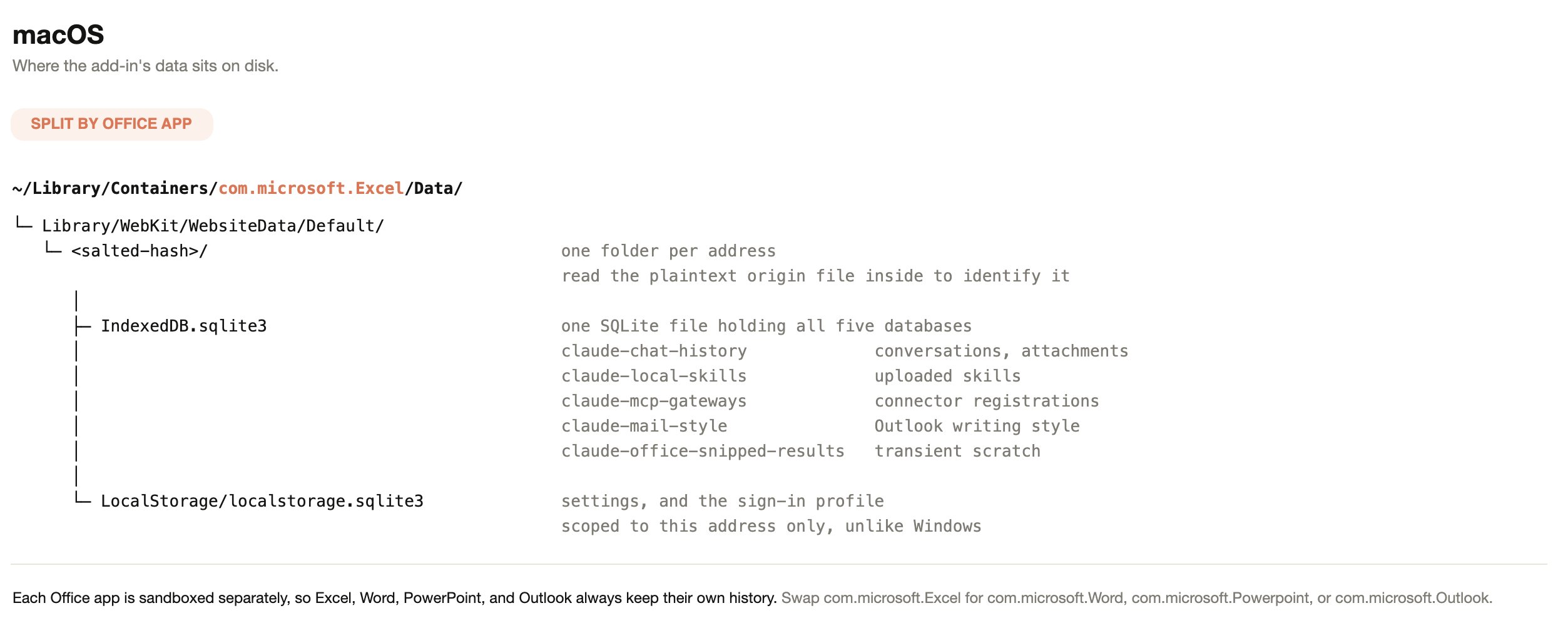
What chat history is keyed to
Sharing a store is not the same as sharing a history list. Each conversation is stored against a user identity, an organization, and the Office app it was created in. The list shows only the conversations that match all three for the session in use. When users sign in with a Claude account, that account is the identity. In third-party platform deployments there is no Claude account, so the identity comes from the Microsoft Entra ID sign-in already present in Office, as a one-way hash of the directory object ID. The history key holds nothing about the user in readable form. The hash is the same for that user on every device, and usage events include it, as described in What leaves the device. Office builds without support for nested app authentication cannot supply the Entra ID sign-in the add-in reads. On those builds Claude for M365 falls back to a per-installation identifier. Conversations still persist on that device; they are tied to the installation rather than to the directory account. The table below gives the result for each case.
Changing connection mode is not a data loss event, because nothing is deleted,
but it is an identity change and the history list follows the identity.
One store derives identity differently from chat history. The Outlook writing
style guide has no per-installation fallback. On Office builds where the Entra
ID identity cannot be read, it falls back to a single shared key, so one learned
writing style is shared by everyone using that browser profile.
Data retention
The table below shows how long Claude for M365 keeps each kind of local data. Users can also delete their saved conversations at any time, as described after the table.
Users clear their own conversations from the add-in’s settings. Under “Chat
history”, “Delete all” removes every saved conversation for that user in that
Office app and starts a new chat.
There is no expiry by age and no administrator-configurable retention window.
Claude for M365 also does not inherit custom data retention settings configured
for your organization. If your policy requires a retention limit on this data,
the practical control is the device profile lifecycle, such as roaming-profile
cleanup or reimaging, rather than a setting in the add-in.
What leaves the device
The table below covers each category and its destination, so you can scope a review to the paths that carry content off the endpoint.
When Anthropic
serves your add-in settings from your Claude organization,
members sign in with a Claude account. This option is in preview. Feature-flag
requests, usage events, and the session records that Sentry keeps, which count
sessions and crashes, then carry the identifiers described for a Claude account
sign-in. Error reports follow the row for third-party platform deployments.
Files that these members attach are not uploaded to Anthropic. Your
organization’s setting that turns off third-party analytics does not apply to
these members.
Until September 23, 2026, Anthropic’s server sent usage events to Segment, a
third-party analytics service. These included the text of rating comments and
any job role a user typed during onboarding or in a later survey.
With a Claude account sign-in, the add-in stops sending usage events and error
reports for an organization whose Claude settings turn off third-party
analytics. Usage events go to Anthropic rather than to a third party, and the
setting still stops them. The add-in applies the setting once it has loaded the
organization’s settings, so events from before that point, such as those during
sign-in, can still be sent.
The setting does not stop the following:
- The session records that Sentry keeps. They can include the user’s account ID.
- Feature-flag requests, and the feature variants the add-in sends directly to Anthropic.
- The identifiers on model requests.
- The traces, logs, and metrics sent to Anthropic.
Export a user’s data before a device is rebuilt
Theclaude-for-msft-365-install plugin includes read-only export scripts for
macOS and Windows. They read Office’s storage and write only to the folder you
name, and running them with no arguments reports what was found without copying
anything. See
Deploy the add-in for your organization
for installation, then run /claude-for-msft-365-install:export-data.
Export before any of the following:
- A device is rebuilt, reimaged, or handed to another person.
- Anyone clears the Office add-in cache on Windows. The storage sits inside the
same
Weffolder as the manifest cache, so deleting that folder destroys chat history along with the manifest. - Roaming-profile or FSLogix cleanup runs against the user’s profile.
- A browser policy such as
ClearBrowsingDataOnExitis applied to the device.